
Anker Laptop Docking Station Dual Monitor
4.5Editor score
8-in-1 Connectivity Options
Dual 4K HDMI Output Support
85W Pass-Through Charging
Discover the top docking stations for Dell laptops in October 2026. This guide compares power delivery, display support, and connectivity for every Dell user.
Finding the right docking station for your Dell laptop is essential for creating a productive home or office workspace. A good dock transforms a single USB-C port into a full desktop setup with multiple monitors and peripherals.
We compared ten top-rated docking stations based on power delivery, video output capabilities, and overall build quality. Each product offers unique features tailored to different workflows and budget levels.
Every pick highlights specific strengths like charging speed or display support to help you choose confidently. Please note that prices and availability change frequently, so check the latest offers before buying.
4.5Editor score

4.5Editor score

4.3Editor score
This side-by-side comparison highlights the key specifications and features of the top docking stations available for Dell laptops in November 2026.




The Dell Pro Laptop Docking Station WD25 stands out as a top choice for Dell users seeking reliable performance and connectivity. With a strong 4.5-star rating, it promises robust power delivery and extensive display options.
We may earn a commission when you buy through this link, at no additional cost to you.
This dock delivers up to 100W of power ensuring your Dell laptop stays charged while running demanding tasks. It supports up to four high-resolution displays making it ideal for multitasking professionals. The ambidextrous USB-C cable design allows for flexible setup options.
While it is more expensive than generic hubs its build quality and Dell-specific optimization justify the cost. The sustainable design with recycled materials is a bonus for eco-conscious buyers. However it may be less suitable for non-Dell users.
If you own a Dell laptop and need a high-performance docking solution this product is highly recommended. It offers the best balance of power flexibility and sustainability in its class.
Delivers up to 100W power to charge your laptop efficiently while supporting multiple peripherals.
Supports up to four high-resolution displays for an expanded workstation setup.
We may earn a commission when you buy through this link, at no additional cost to you.
The Anker Laptop Docking Station Dual Monitor offers exceptional value for budget-conscious users who still want high-quality connectivity. With a 4.5-star rating it is a popular choice for many Dell laptop owners.
We may earn a commission when you buy through this link, at no additional cost to you.
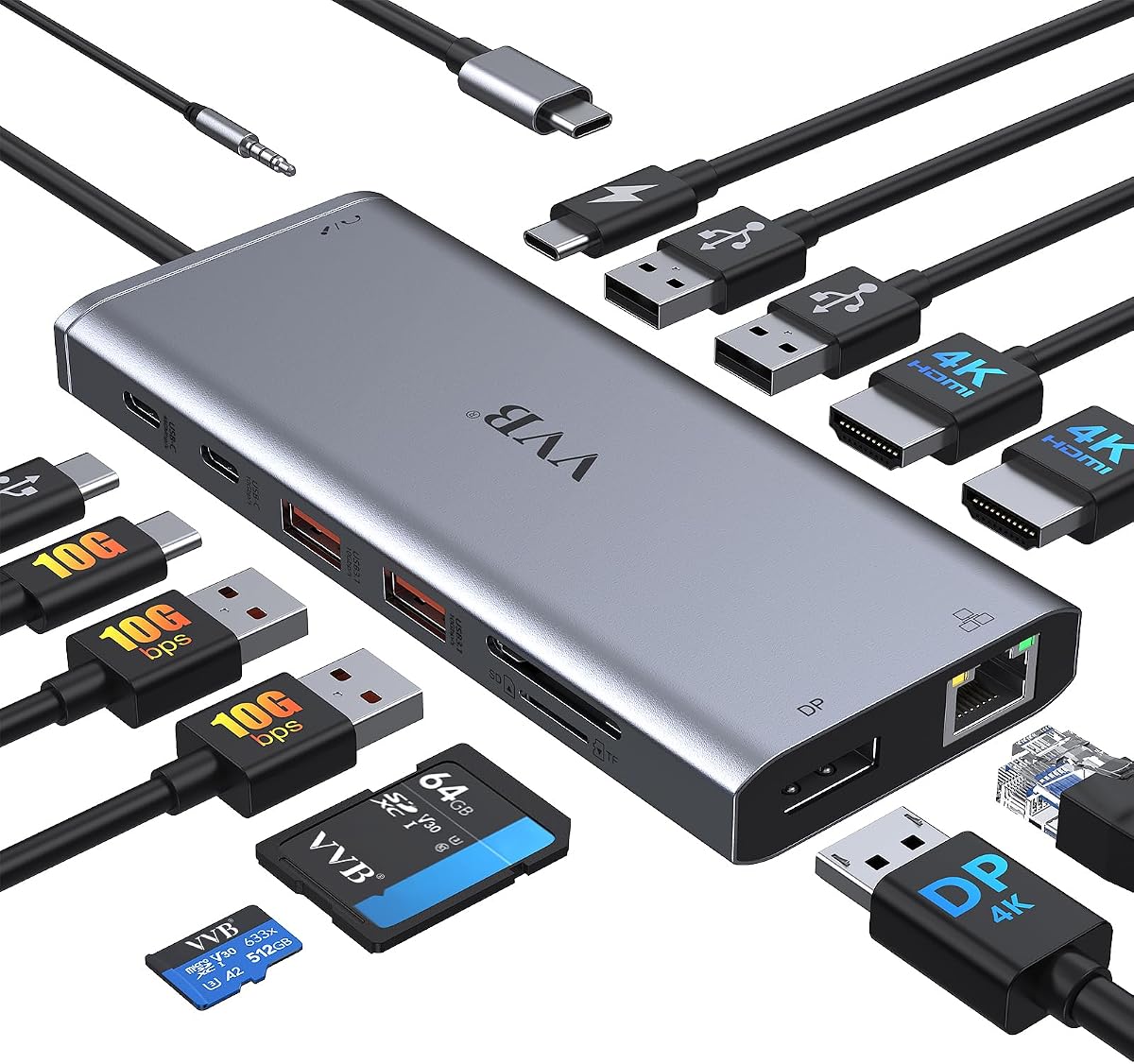
This 8-in-1 hub provides a wide range of ports including two HDMI ports for dual 4K displays. It supports 85W pass-through charging which is sufficient for most laptops. The inclusion of Ethernet and a card reader adds versatility to your setup.
While it has some limitations with macOS and Linux users it works well with Windows systems. The price makes it accessible for students and casual users who do not need enterprise features. It is a solid entry-level option for expanding your laptop capabilities.
For those seeking an affordable yet reliable docking station this Anker model is an excellent pick. It balances cost and functionality effectively for everyday tasks and light professional use.
Equipped with HDMI Ethernet and SD card reader for versatile connection possibilities.
Supports 85W pass-through charging to keep your laptop powered while in use.
We may earn a commission when you buy through this link, at no additional cost to you.
The Anker Prime Docking Station 14-in-1 is a powerhouse for users who demand maximum connectivity and charging capabilities. It holds a 4.3-star rating and is designed for heavy-duty professional workflows.
We may earn a commission when you buy through this link, at no additional cost to you.
This dock delivers up to 160W total output allowing you to charge up to four devices simultaneously. It features 11 ports including dual 4K HDMI and data transfer speeds up to 10Gbps. It is perfect for users with multiple peripherals and external displays.
Although it is more expensive the sheer number of ports and power options justify the investment. The only notable limitation is the lack of support for ultra-high-resolution 5120*1440 monitors. For most professional setups it offers exceptional versatility.
If you need a premium docking solution with extensive ports and charging power this Anker Prime model is the top choice. It is ideal for power users who require a fully connected workspace.
Provides up to 160W total output to charge multiple devices simultaneously.
Supports dual 4K displays and high-speed data transfer for efficient workflows.
We may earn a commission when you buy through this link, at no additional cost to you.
This USB C Docking Station offers a unique triple display capability making it suitable for users who need extensive screen real estate. It holds a 4.3-star rating and is compatible with various laptop brands including Dell.
We may earn a commission when you buy through this link, at no additional cost to you.
It features multiple video outputs including HDMI and DisplayPort supporting triple displays. The 100W USB-C charging port ensures your laptop stays powered while running multiple screens. It is an affordable option for expanding your workspace.
While the data ports are limited to USB 2.0 speeds it is sufficient for keyboards and mice. The triple display feature is rare at this price point. However it does not support ultra-high-resolution monitors beyond 1080P in some configurations.
If you need a budget-friendly solution for triple displays this docking station is a great option. It provides excellent versatility for multitasking without breaking the bank.
Allows connection of up to three monitors for enhanced multitasking capabilities.
Supports up to 100W USB-C charging to keep your laptop powered.
We may earn a commission when you buy through this link, at no additional cost to you.
The Anker Nano Laptop Docking Station features a unique detachable design making it versatile for both desk and travel use. It has a 4.2-star rating and is designed to replace multiple devices with one.
We may earn a commission when you buy through this link, at no additional cost to you.
This 13-in-1 dock supports up to three monitors and delivers 100W of power delivery to your laptop. The detachable 6-in-1 hub allows you to take essential ports with you on the go. It includes a 140W power adapter for stable performance.
While the detachable feature is convenient it requires your laptop to be connected for activation. macOS users should note that it supports mirrored mode only on external displays. It is a great choice for those who travel frequently.
If you need a versatile docking solution that works both at home and on the go this Anker Nano model is ideal. It offers a balance of power and portability.
Features a detachable 6-in-1 hub for easy travel and on-the-go use.
Supports up to three monitors for a full desktop workstation experience.
We may earn a commission when you buy through this link, at no additional cost to you.
This USB C Laptop Docking Station provides extensive connectivity with 14 ports making it suitable for users who need many connections. It holds a 4.3-star rating and supports triple displays on Windows systems.
We may earn a commission when you buy through this link, at no additional cost to you.
It offers dual HDMI 4K output and a DisplayPort for expanded screen real estate. The 100W power delivery ensures your laptop stays charged while using multiple peripherals. It includes Gigabit Ethernet for stable wired internet.
While triple displays are supported they are limited to 1080P resolution. macOS users should be aware of the mirror mode limitation. It is a robust option for Windows users needing many ports.
If you need a versatile docking station with ample ports and triple display support this model is a strong choice. It is ideal for multi-tasking environments.
Supports triple displays on Windows for enhanced multitasking capabilities.
Provides 14 ports for connecting multiple devices and peripherals.
We may earn a commission when you buy through this link, at no additional cost to you.
The Dell WD19S 180W Docking Station is designed for Dell users needing high power delivery. It has a 3.8-star rating which is lower than newer models but still offers reliable performance.
We may earn a commission when you buy through this link, at no additional cost to you.
It delivers 130W of power delivery which is sufficient for high-performance laptops. It includes dual DisplayPorts and HDMI for flexible display setups. The 180W adapter ensures stable power for all connected devices.
While the rating is lower it is a durable option for professional workloads. However newer models may offer better features at lower prices. It is suitable for those who prioritize power and Dell compatibility.
If you need a high-power docking solution for your Dell laptop this WD19S model is a strong option. It is best for users needing substantial power delivery.
Delivers 130W power to support high-performance laptops and peripherals.
Designed specifically for Dell laptops to ensure optimal compatibility.
We may earn a commission when you buy through this link, at no additional cost to you.
This Anker Laptop Docking Station offers a compact vertical design saving desk space while providing extensive connectivity. It holds a 4.0-star rating and is suitable for users needing multiple displays.
We may earn a commission when you buy through this link, at no additional cost to you.
It supports up to three external monitors for expanded multitasking. It includes 13 ports including multiple USB-C and USB-A ports. The included 135W adapter provides stable power for all connected devices.
While it is compact it still delivers high-speed data transfer. macOS users should note the mirror mode limitation. It is a good balance of size and functionality for most users.
If you need a space-saving docking station with triple display support this Anker model is a great choice. It is ideal for users with limited desk space.
Vertical design saves desk space while providing full desktop functionality.
Supports up to three monitors for expanded multitasking capabilities.
We may earn a commission when you buy through this link, at no additional cost to you.
The Dell WD19 130W Docking Station is a reliable option for Dell users seeking standard connectivity. It has a 4.0-star rating and is optimized for Dell laptops.
We may earn a commission when you buy through this link, at no additional cost to you.
It delivers 90W of power delivery which is sufficient for most Dell laptops. It includes dual DisplayPorts and HDMI for flexible display setups. The 130W adapter ensures stable power for all connected devices.
While it offers less power than the WD19S it is still a robust choice. It is suitable for users who prioritize Dell compatibility. It is a solid option for everyday office tasks.
If you need a dependable docking solution for your Dell laptop this WD19 model is a good choice. It is ideal for standard office workloads.
Delivers 90W power to keep your Dell laptop charged while in use.
Optimized for Dell laptops to ensure seamless integration.
We may earn a commission when you buy through this link, at no additional cost to you.
This WD19 Dell Docking Station offers a budget-friendly renewed option for Dell users. It has a 4.1-star rating and includes all the features of the new model.
We may earn a commission when you buy through this link, at no additional cost to you.
It supports dual monitors and includes a 180W power adapter for stable power. The renewed condition offers significant savings compared to buying new. It includes USB-C cables for immediate setup.
While it is a renewed product it has been inspected to work properly. It is ideal for those looking to save money without sacrificing performance. It is a great entry-level Dell docking solution.
If you want a Dell docking station at a lower price this renewed WD19 model is a great choice. It is ideal for budget-conscious users.
Renewed condition offers significant savings while providing full functionality.
Includes 180W adapter and USB-C cables for complete setup.
We may earn a commission when you buy through this link, at no additional cost to you.
Choosing the right docking station involves considering several factors to ensure compatibility and performance for your Dell laptop.
Power delivery is a crucial factor when selecting a docking station for your Dell laptop. Ensure the dock provides sufficient wattage to power your laptop and connected peripherals simultaneously. Most Dell laptops require at least 65W to 100W for effective charging and operation.
Look for docks that support USB-C Power Delivery protocols to ensure stable and efficient charging. Higher wattage docks are preferable if you use multiple peripherals or have power-hungry laptops.
Consider how many external monitors you need to connect to your laptop. Docks vary in their ability to support dual or triple displays at different resolutions. Ensure the dock supports your monitor's resolution and refresh rate requirements.
Check for HDMI and DisplayPort outputs to match your monitor inputs. Some docks support 4K resolution which is ideal for high-definition work. Compatibility with your laptop's video capabilities is essential.
The variety and number of ports are important for connecting all your peripherals. Look for USB-A and USB-C ports for devices like keyboards, mice, and external drives. Ethernet ports provide stable internet connections for professional use.
Additional ports like SD card readers and audio jacks add versatility to your setup. Ensure the dock has enough ports to avoid the need for additional hubs. Consider your specific peripheral needs when selecting a dock.
Ensure the docking station is compatible with your specific Dell laptop model. Some docks work best with Dell laptops due to proprietary features or optimizations. Check the product details for compatibility lists to avoid issues.
Universal docks support multiple brands but may lack specific optimizations. Verify support for USB-C Alt Mode and Thunderbolt connections on your laptop. Compatibility ensures smooth operation without drivers or software.
A durable build quality ensures longevity and reliable performance over time. Look for docks made from sturdy materials like aluminum or high-grade plastic. Good heat dissipation is important to prevent overheating during extended use.
Ports should be robust to withstand frequent plugging and unplugging. Consider docks with warranties for added peace of mind. High-quality construction is worth the investment for daily use.
Data transfer speed is essential if you frequently move large files. Look for docks with USB 3.0 or higher ports for fast data transfer. Some docks support USB-C or Thunderbolt which offers even faster speeds.
High-speed data transfer improves workflow efficiency. Consider your usage patterns to determine if fast data transfer is necessary. Ensure the dock supports speeds compatible with your laptop capabilities.
Consider the size and design of the dock for your workspace. Compact docks save desk space and are ideal for minimal setups. If you travel frequently, look for portable options with detachable hubs.
Cable management features like ambidextrous routing add convenience. Ensure the dock fits comfortably on your desk without clutter. Portability is key for users who work from multiple locations.
Price varies widely depending on features and brand. Set a budget that balances affordability with the features you need. Higher price docks may offer better power delivery and durability.
Consider long-term value when investing in a dock. Reliable docks reduce the need for replacements and troubleshooting. Compare features across different models to find the best value.
Connect the docking station to your Dell laptop using the USB-C cable. Ensure the dock is connected to a power source using the included adapter. Wait for the system to recognize the dock and connected peripherals.
Organize your peripherals by plugging them into the appropriate ports on the dock. This reduces cable clutter and simplifies connectivity. Use the Ethernet port for stable internet access if needed.
Regularly inspect the cables and ports for damage to ensure safe operation. Keep the dock clean by wiping it with a soft dry cloth. Avoid exposing the dock to moisture or extreme temperatures to prolong its lifespan.
While universal docks work with many laptops, Dell-specific docks offer better compatibility and features. Ensure the dock supports your laptop's power delivery and video output requirements.
Yes, many Dell docking stations support dual or triple monitors. Check the product specifications for the maximum number of displays supported at your preferred resolution.
Most Dell docking stations provide power delivery to charge your laptop. Ensure the dock's wattage matches or exceeds your laptop's power requirements.
Many docking stations work with macOS but may have limitations like mirrored displays only. Check compatibility before purchasing if you use a Mac laptop.
Most docking stations are plug-and-play requiring no drivers. Some may require firmware updates for best compatibility. Check product details for driver requirements.
Typically you need a USB-C or Thunderbolt cable for your laptop and a power adapter. Some docks include these cables but others may require separate purchases.
The Dell Pro Laptop Docking Station WD25 leads the list with excellent power delivery and display support. It is the top choice for professionals needing a reliable and powerful docking solution.
When choosing a dock prioritize power delivery and display support to match your needs. Budget models like the Anker 8-in-1 offer great value for casual users without sacrificing functionality.
Remember that prices and availability can change so always check the latest offers before purchasing. Investing in the right docking station will enhance your productivity and workspace organization.