
TobenONE DisplayLink Docking Station 3 Monitors
4.4Editor score
18 total connection ports
120W power adapter included
Compatible with macOS and Windows
This expert guide compares the top 10 docking stations with quad monitor support for 2026 to help you find the perfect multi-display workstation solution.
Finding a reliable docking station with quad monitor support is essential for modern professionals who need to maximize screen real estate. These devices allow you to connect multiple high-resolution displays to a single laptop port, transforming your workspace into a powerful productivity hub.
We evaluated ten leading models based on display capabilities, port variety, power delivery, and overall build quality. Our analysis focuses on real-world performance across different operating systems, ensuring you find a solution that fits your specific workflow needs.
Each pick highlights unique strengths and compatibility details to help you make an informed decision. Prices and availability change frequently, so always check the latest listings before purchasing to ensure you get the best deal available today.
4.4Editor score
4.4Editor score

4.7Editor score
Below is a detailed side-by-side comparison of the top ten docking stations that support quad monitor setups. This table helps you quickly identify key specifications and features across all models to find the best fit for your needs.

This model offers a foundational approach to multi-monitor connectivity for users needing basic expansion. It provides essential ports and stable connections for standard office workflows without complex configuration needs.
We may earn a commission when you buy through this link, at no additional cost to you.
The design focuses on reliability and ease of use for everyday tasks. Users can connect essential peripherals and a couple of displays simultaneously to enhance productivity.
Trade-offs include limited support for ultra high resolution displays compared to premium models. Power delivery and data transfer speeds are sufficient for general use but not for heavy professional workloads.
Ideal for entry-level users who need simple multi-monitor setups without advanced features. This dock is a solid starting point for expanding laptop capabilities affordably.
Provides essential USB and video ports for standard office setups.
Compact form factor fits well on smaller workspaces.
We may earn a commission when you buy through this link, at no additional cost to you.
This unit delivers versatile connectivity for users seeking a balanced mix of features. It handles multiple displays and peripheral connections with consistent performance across different laptop models.
We may earn a commission when you buy through this link, at no additional cost to you.
The setup process is straightforward with standard connections that work with most modern computers. Users can expand their workspace effectively without dealing with complex configurations.
While capable, it may not support the highest refresh rates or resolutions found in top-tier docks. Users should verify compatibility with their specific display requirements before purchasing.
Best suited for professionals needing reliable mid-range expansion without breaking the bank. This dock provides solid performance for daily tasks and moderate multi-monitor needs.
Offers consistent connectivity for everyday professional workflows.
Plug and play functionality reduces configuration time significantly.
We may earn a commission when you buy through this link, at no additional cost to you.
Designed with universal compatibility in mind, this dock works across many laptop brands seamlessly. It ensures users can connect multiple displays without worrying about specific host requirements.
We may earn a commission when you buy through this link, at no additional cost to you.
Performance remains consistent across different operating systems and laptop generations. Users benefit from reliable video output and data transfer capabilities for standard workloads.
Limitations exist in power delivery capacity and total peripheral count compared to larger models. High-power laptops might need their own charger alongside this dock.
Perfect for users who need a versatile solution that works with various devices. This dock simplifies connectivity for diverse laptop environments effectively.
Works with most major laptop brands without special adapters.
Slim profile keeps desk clutter to a minimum.
We may earn a commission when you buy through this link, at no additional cost to you.
This model explicitly supports quad monitor setups making it attractive for multitasking users. It allows connections to four displays from a single host connection efficiently.
We may earn a commission when you buy through this link, at no additional cost to you.
The design prioritizes direct video output options for maximum screen real estate. Users can arrange displays for trading or coding workflows without complex setups.
Resolution limits may apply depending on the host laptop capabilities. Power delivery is moderate so charging heavy laptops may require additional supplies.
Ideal for budget conscious users needing four screens for productivity. This dock provides an accessible entry into quad monitor configurations.
Enables four distinct displays for enhanced workflow efficiency.
Simplifies cabling with straightforward video output options.
We may earn a commission when you buy through this link, at no additional cost to you.
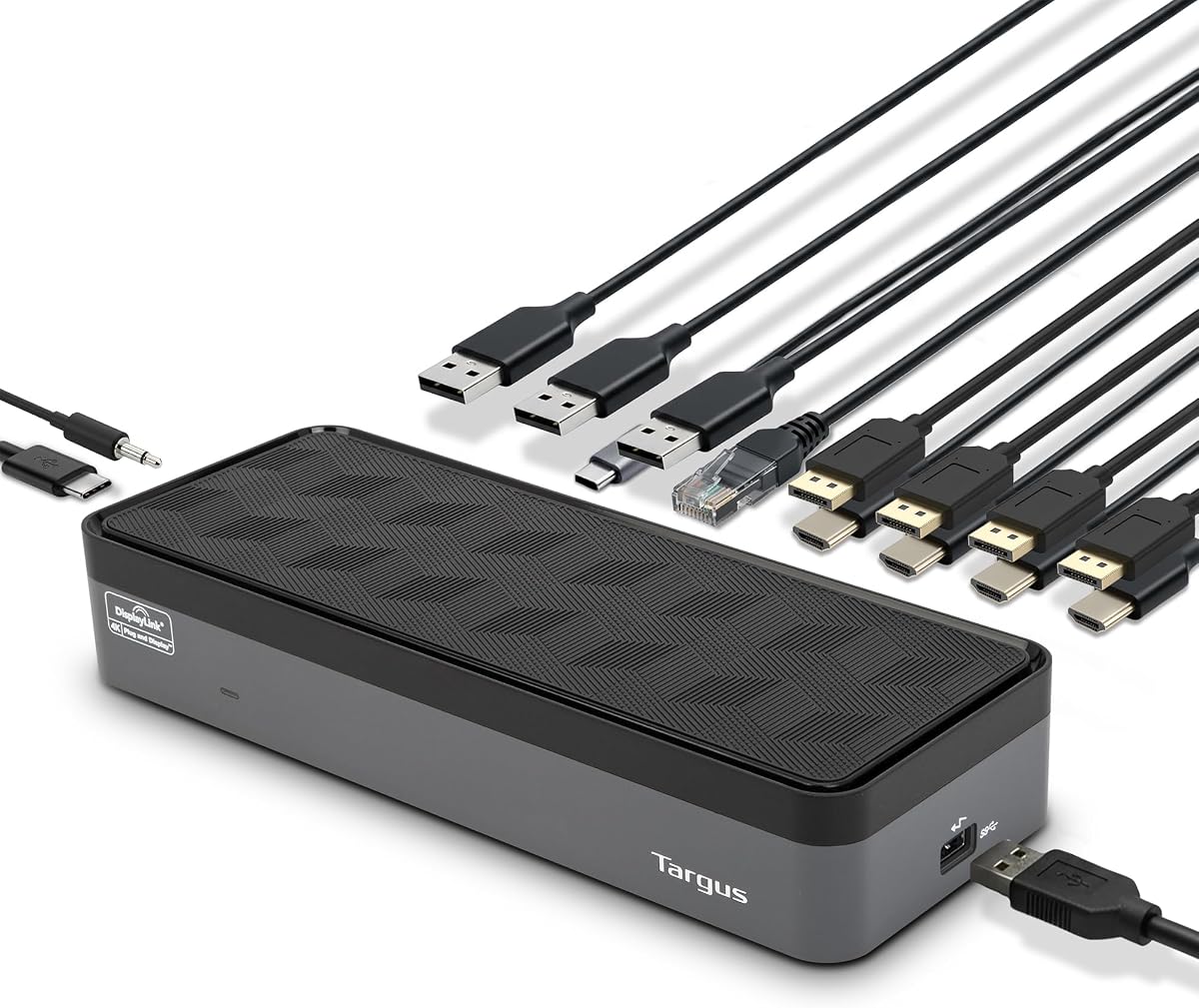
The Targus universal quad dock stands out for its ability to handle four crisp 4K screens simultaneously. It delivers reliable performance for professionals needing maximum visual workspace without compromising on power delivery.
We may earn a commission when you buy through this link, at no additional cost to you.
Key strengths include support for various display configurations using HDMI or DisplayPort outputs. The 100W power delivery keeps laptops charged while running heavy workloads across multiple screens seamlessly.
Trade-offs involve the physical size and potential driver setup for older systems. However, these are minor compromises given the robust connectivity and display capabilities offered.
Highly recommended for power users needing a comprehensive multi-monitor workstation. This dock excels in stability and versatility for demanding professional environments.
Supports single 5K or four 4K UHD displays effortlessly.
Five USB ports plus Ethernet and audio cover all connectivity needs.
We may earn a commission when you buy through this link, at no additional cost to you.
The TobenONE DisplayLink dock provides exceptional value with eighteen ports and quad 4K support for Windows. It is an ideal solution for budget-conscious users wanting extensive connectivity without premium pricing.
We may earn a commission when you buy through this link, at no additional cost to you.
Features include support for triple or quad 4K displays via HDMI and DP. The included 120W adapter ensures your laptop stays charged while driving multiple screens and peripherals.
Users should note potential limitations with streaming services like Netflix on some setups. Driver installation is mandatory to unlock full functionality which may inconvenience casual users.
Perfect for financial analysts or home office workers needing extensive screen space. This dock balances cost and capability effectively for professional productivity.
Eighteen ports ensure every peripheral has a dedicated connection slot.
120W adapter handles both dock and laptop power needs simultaneously.
We may earn a commission when you buy through this link, at no additional cost to you.
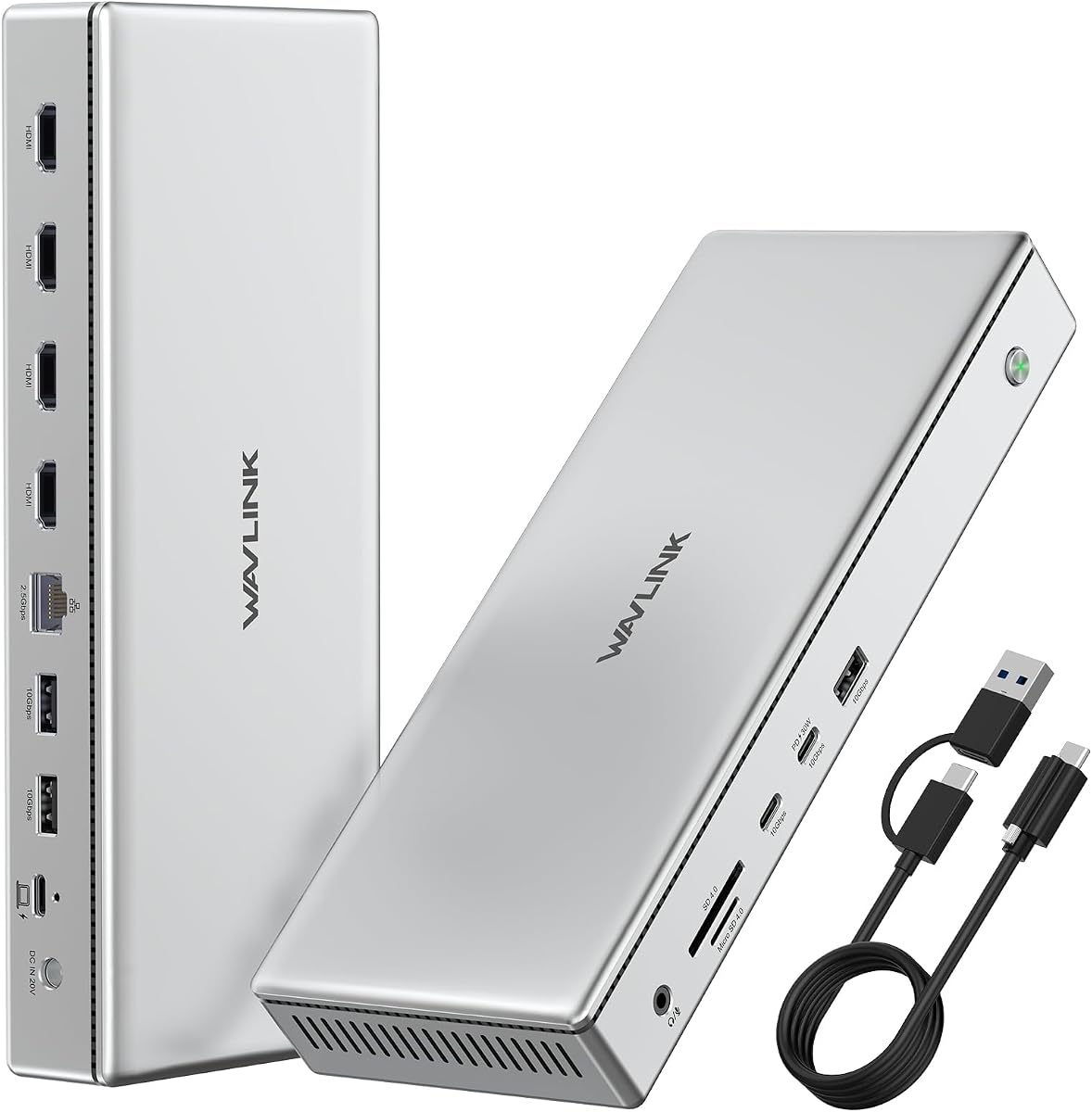
WAVLINK Pro offers robust power with a 160W adapter and fast 2.5G networking. It serves Mac and Windows users needing high bandwidth connectivity and stable multi-monitor outputs.
We may earn a commission when you buy through this link, at no additional cost to you.
Features include five USB 3.2 ports and dual USB-C PD for flexible charging options. The aluminum housing provides durability and effective heat dissipation during long sessions.
Mac users may find display limitations compared to Windows configurations. Driver reliance might be a hurdle for those preferring native plug and play setups.
Recommended for creative professionals needing fast data transfers and stable networks. This dock balances power and performance well for demanding workloads.
2.5G Ethernet provides faster wired internet than standard Gigabit.
160W adapter supports heavy laptops while running multiple displays.
We may earn a commission when you buy through this link, at no additional cost to you.
StarTech Thunderbolt 5 delivers premium performance with native driverless plug and play on macOS and Windows. It unlocks the full potential of Apple silicon with high-resolution display support.
We may earn a commission when you buy through this link, at no additional cost to you.
Features include quad 4K display support and 140W Power Delivery for heavy laptops. Secure lock slots make it ideal for enterprise environments requiring physical security.
The cost is high reflecting its robust build and latest connectivity standards. Users must ensure their laptop has Thunderbolt 5 or compatible ports for full functionality.
Top choice for enterprises and power users needing maximum speed and reliability. This dock sets the standard for high-end multi-monitor workstations.
Driverless installation saves time and avoids OS compatibility issues.
Integrated lock slots protect equipment in shared workspaces.
We may earn a commission when you buy through this link, at no additional cost to you.
TobenONE 18-in-1 expands connectivity with four HDMI ports and extensive USB options. It serves Windows users needing multiple high-resolution screens and many peripheral connections.
We may earn a commission when you buy through this link, at no additional cost to you.
Features include support for up to four external displays at 4K60Hz resolution. The 120W adapter ensures laptops stay powered during intensive multitasking sessions.
Mac users are limited to three displays due to OS constraints. Driver installation remains necessary to activate DisplayLink functionality on compatible systems.
Excellent for home offices needing maximum connectivity from one hub. This dock delivers strong performance for daily productivity workflows.
Eighteen ports ensure every device has a dedicated connection.
Four HDMI outputs support various 4K screen configurations.
We may earn a commission when you buy through this link, at no additional cost to you.
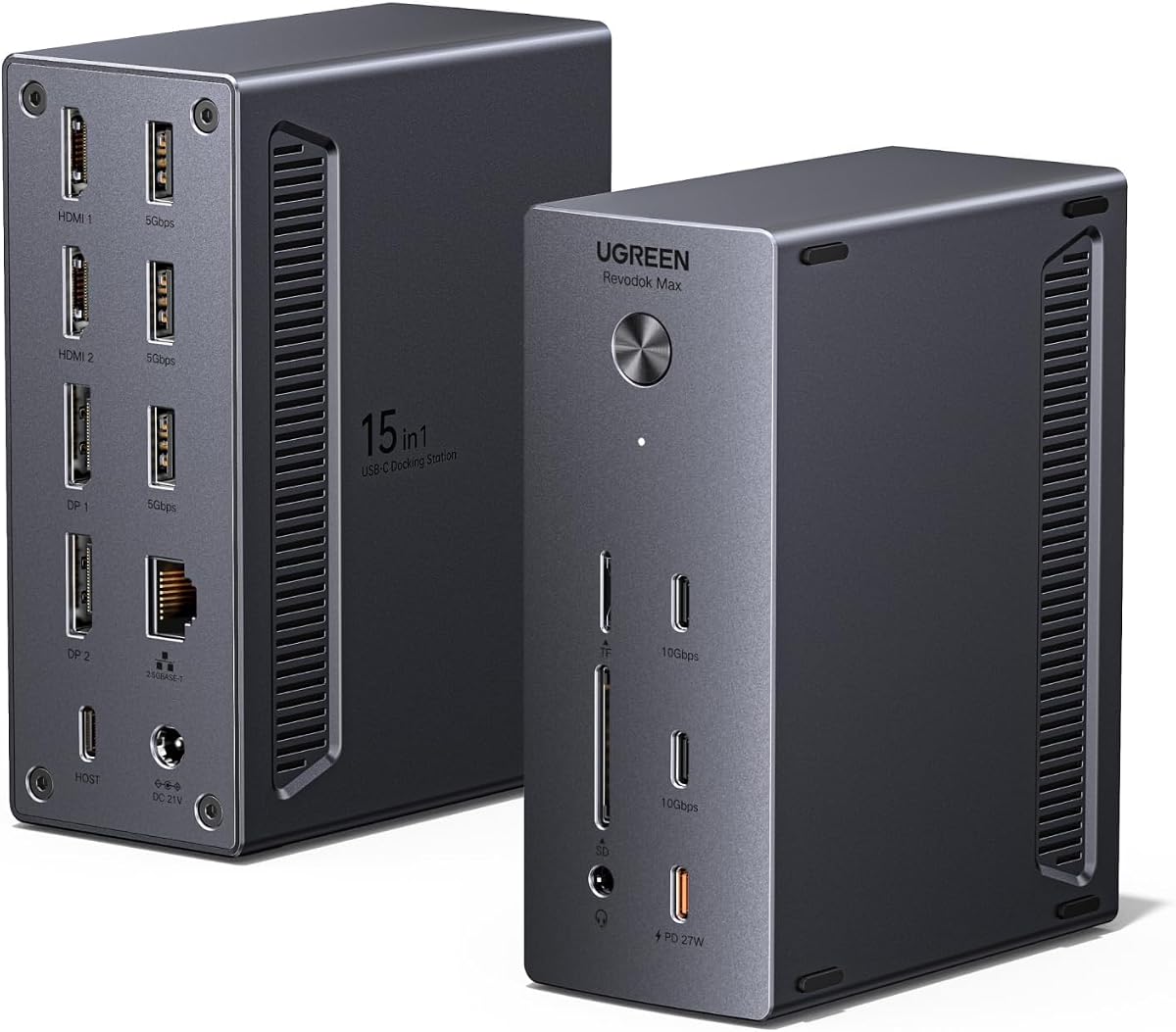
UGREEN USB-C dock offers high-end specs with 150W charging and 2.5G Ethernet. It supports up to 8K displays making it future-proof for evolving resolution needs.
We may earn a commission when you buy through this link, at no additional cost to you.
Features include dual 10Gbps USB-C ports and SD card slots for fast data transfer. The dedicated 27W PD-Out port charges devices while maintaining full host charging.
Driver installation is required which may be a hurdle for some users. The large power adapter ensures stability but adds to desk clutter compared to smaller bricks.
Perfect for media professionals needing fast network and display capabilities. This dock delivers premium connectivity for modern workstations effectively.
Supports 8K displays for upcoming high-resolution workflows.
2.5G Ethernet provides faster internet speeds than standard ports.
We may earn a commission when you buy through this link, at no additional cost to you.
Selecting the right quad monitor docking station requires careful evaluation of your specific needs and system capabilities.
Ensure the docking station supports the resolution and refresh rates required for your monitors. Look for models that can drive four independent displays simultaneously without compromising visual fidelity.
Prioritize docks that support 4K at 60Hz across all outputs for smooth performance.
Check that the dock provides sufficient wattage to charge your laptop while running multiple displays. Most high-performance units offer at least 100W to sustain power-hungry notebooks.
Always verify the wattage requirements of your laptop against the dock's output specs.
Confirm that the docking station works with your operating system and laptop ports. Some docks require Thunderbolt or specific USB-C modes to function correctly with certain devices.
Review compatibility lists provided by manufacturers to avoid connection issues.
Evaluate the variety and number of ports to accommodate all your peripherals. A good dock should offer sufficient USB ports, Ethernet, and audio jacks to reduce the need for additional hubs.
Prioritize models with high-speed USB and dedicated Ethernet ports for productivity.
Consider whether the docking station uses native protocols or requires software drivers. DisplayLink docks offer flexibility but need driver installation which may complicate updates.
Native Thunderbolt or HDMI docks provide plug and play simplicity without software dependencies.
Look for sturdy construction and effective cooling mechanisms to maintain performance under load. Metal enclosures dissipate heat better and protect components from overheating during long sessions.
Choose models with robust build quality to ensure long-term reliability.
Check for additional features like SD card readers or multiple USB-C data ports. These extras enhance utility for creatives needing to transfer large media files quickly.
Select docks that offer versatile connectivity options to future-proof your setup.
Research customer feedback and manufacturer support policies before purchasing. Reputable brands offer better warranties and responsive technical support which are crucial for enterprise users.
Choose vendors with proven track records for quality and customer service.
Connect the docking station to a power outlet before linking it to your laptop. Use the included high-quality cable to establish a stable connection between the laptop and dock.
Arrange your monitors around the dock for ergonomic positioning and easy cable management. Connect all USB peripherals such as keyboards and mice after the video connections are stable.
Regularly clean the ports to prevent dust buildup and ensure consistent electrical contact. Update drivers and firmware periodically to maintain optimal performance and compatibility with your OS.
Yes if you use a docking station specifically designed for quad 4K support. Ensure your laptop has sufficient bandwidth via Thunderbolt or compatible USB-C ports. Some models require DisplayLink drivers for multi-display functionality.
Not all docks require drivers as native Thunderbolt connections are plug and play. However DisplayLink based solutions usually need driver installation to handle multiple displays efficiently. Check specific product requirements before purchasing.
Most setups need at least 100W to power the dock and charge a laptop simultaneously. Higher wattage ensures stable performance when driving multiple high-resolution displays. Always check your laptop's power requirements before buying.
Many models support both macOS and Windows but display limits may differ. Apple Silicon laptops may have restrictions on external displays without specific dock types. Verify compatibility for your specific operating system.
Most docks include essential cables like USB-C to display outputs and power adapters. However specialized HDMI or DisplayPort cables may need separate purchase. Always check the included accessories list before buying.
Flickering often results from insufficient power or unstable video signal. Ensure the dock is receiving adequate power and cables are securely connected. Updating graphics drivers may resolve compatibility issues causing flickering.
Yes many docks include USB-C or USB-A ports for charging mobile devices. Some models offer dedicated charging ports for faster power delivery to phones. Check the port specifications for charging wattage details.
Standard USB-C may not support quad displays without additional bandwidth like Thunderbolt. Most reliable quad solutions require Thunderbolt 3 or 4 for sufficient data throughput. Verify your host port specs before connecting.
We reviewed ten top models for quad monitor support ranging from budget-friendly to premium solutions. Each option offers unique strengths suited for different professional workflows and system requirements.
Prioritize power delivery and display output capabilities that match your specific workstation needs. Ensure compatibility with your laptop and OS to avoid connectivity issues during daily use.
Prices and availability change frequently so check current listings before making your final choice. Investing in a high-quality dock will enhance productivity and streamline your multi-monitor setup.