
Canon PIXMA TR7120
4.3Editor score
Affordable price point
Auto duplex printing
Compact design
This guide compares the top all in one printer for MacBook Air to help you find the best wireless model for speed quality and seamless Apple integration.
Finding the right all in one printer for MacBook Air can transform your home office workflow. You need seamless connectivity, high-quality output, and reliable performance that matches your laptop's portability and style.
We evaluated ten top-rated models based on wireless compatibility, print quality, and ease of use with macOS. Each device was analyzed for its ability to handle documents, photos, and multi-page tasks efficiently.
Every pick highlights key strengths and potential trade-offs to help you decide. Please note that product availability and pricing may change over time, so verify details before purchasing your final choice.
4.3Editor score
3.9Editor score

4.3Editor score
This side-by-side comparison outlines the core specifications and unique features of each model to help you quickly identify which all in one printer for MacBook Air fits your needs.




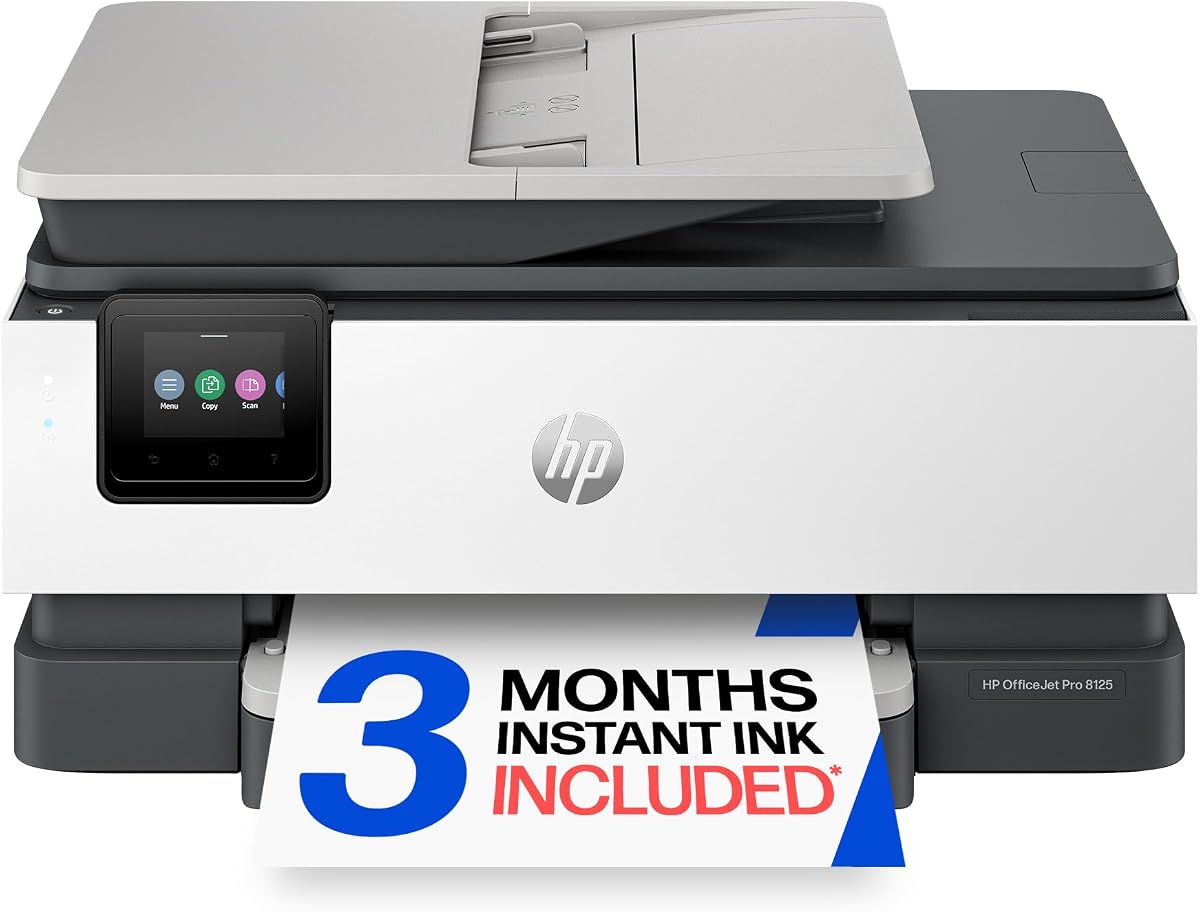
The HP OfficeJet Pro 8125 stands out as a powerful all in one printer for MacBook Air. With a 3.9 rating and fast print speeds, it handles daily tasks efficiently for home office users.
We may earn a commission when you buy through this link, at no additional cost to you.
Its dual-band Wi-Fi ensures stable connections to Mac devices. The HP AI feature optimizes layout formatting, reducing wasted paper. The large touchscreen makes navigating menus simple even for complex jobs.
While proprietary cartridges limit ink flexibility, the Instant Ink trial offsets costs initially. The 300-sheet capacity supports busy workflows. Security features like HP Wolf Essential protect network data effectively.
Buy this model if you need speed and smart features. It balances performance and value well for users prioritizing print quality and macOS connectivity in a compact workspace.
HP AI removes unwanted content from web pages automatically improving print efficiency without manual editing.
Built-in HP Wolf Essential Security safeguards your network against cyber threats during wireless printing sessions.
We may earn a commission when you buy through this link, at no additional cost to you.
The Epson EcoTank ET-2903 offers unmatched value for high-volume printing. With up to three years of ink included, it reduces long-term costs significantly compared to cartridge-based models.
We may earn a commission when you buy through this link, at no additional cost to you.
Refillable tanks and AirPrint support ensure seamless integration with MacBook Air devices. The Heat-Free technology enhances reliability by eliminating warmup times and reducing energy consumption during operation.
Print speeds are slower than inkjet competitors but acceptable for home use. The 1.44-inch color display simplifies navigation. Zero-cartridge waste appeals to eco-conscious buyers seeking sustainable office solutions.
Choose this printer if you print frequently and want savings. It is ideal for students or families needing reliable high-quality prints without constant ink replacements or frequent maintenance.
Replacement ink bottles replace nearly eighty cartridges saving money over time while reducing plastic waste in landfills.
High-resolution settings deliver stunning photographic prints ideal for both professional documents and creative personal projects.
We may earn a commission when you buy through this link, at no additional cost to you.
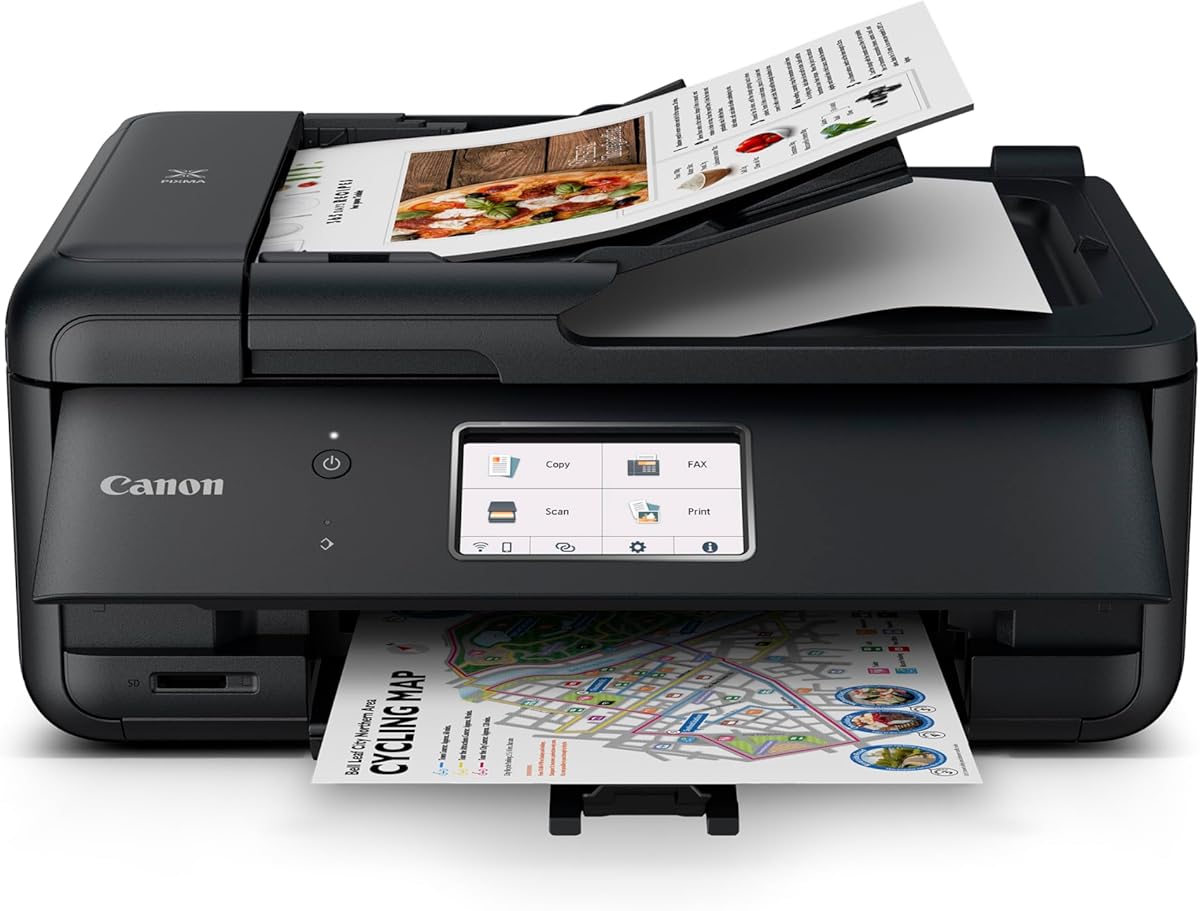
The Canon PIXMA TR7120 provides excellent value as a budget-friendly all in one printer for MacBook Air. It supports documents and photos with a hybrid ink system ensuring vibrant results for home use.
We may earn a commission when you buy through this link, at no additional cost to you.
Setup is quick via smartphone or computer making it accessible for non-technical users. The compact design fits neatly on small desks while maintaining functionality for printing scanning and copying tasks.
Although the paper tray is smaller than premium models, it suits low to medium volume needs. Wireless connections are stable with dual-band Wi-Fi ensuring reliable performance across your home office network.
Buy this model if you prioritize cost and space. It is perfect for students or casual users who need reliable wireless printing without breaking the bank or cluttering limited workspace areas.
Its small footprint complements compact workspaces without sacrificing core printing or scanning functionalities you need daily.
Mobile printing via Canon PRINT app or AirPrint allows effortless document handling directly from your iPhone or iPad.
We may earn a commission when you buy through this link, at no additional cost to you.
The Canon PIXMA TS6520 delivers strong performance for home users needing a reliable all in one printer for MacBook Air. Its 2-cartridge system keeps initial costs low while producing sharp text and vibrant colors.
We may earn a commission when you buy through this link, at no additional cost to you.
The 1.42-inch OLED screen offers a modern interface for monitoring ink levels and settings. Its compact white design blends seamlessly into minimalist home offices or dorm rooms without dominating desk space.
While it lacks an auto document feeder, single-page tasks remain efficient. Dual-band Wi-Fi ensures stable connections to Mac devices. Mobile printing options add flexibility for on-the-go users managing documents remotely.
Select this printer for basic needs and style. It suits users who print occasionally but want modern features and easy setup without compromising on essential scanning and copying capabilities.
The OLED screen provides clear visual feedback making it simple to check status and adjust settings quickly.
A sleek white finish adds a professional look that complements contemporary home office furniture and decor.
We may earn a commission when you buy through this link, at no additional cost to you.
The Brother Work Smart 1360 is a practical all in one printer for MacBook Air designed for efficiency. It offers fast printing speeds and automatic duplex options to optimize paper use for daily documents.
We may earn a commission when you buy through this link, at no additional cost to you.
Cloud apps like Google Drive and Dropbox integrate directly via the printer. The Mobile Connect app simplifies navigation and ink tracking. Multiple connection options including USB provide flexibility if wireless fails.
Some users report setup challenges but performance remains solid once connected. The 1.8-inch display helps manage settings. It supports schoolwork and home office tasks with consistent color output quality.
Buy this if you need speed and cloud features. It fits users who value workflow automation and straightforward printing without complex setups or expensive premium features or subscriptions.
Direct cloud app integration lets you scan or print documents stored online without opening files on your computer.
Page Gauge helps monitor ink levels so you can plan refills before running out of supplies unexpectedly.
We may earn a commission when you buy through this link, at no additional cost to you.
The HP Envy 6155 provides vibrant prints with True-to-Screen tech for accurate color. It serves as a reliable all in one printer for MacBook Air with features tailored for home use.
We may earn a commission when you buy through this link, at no additional cost to you.
HP AI optimizes web page layouts reducing wasted paper. The 2.4-inch touchscreen offers smooth navigation. Dual-band Wi-Fi ensures stable connections for consistent printing performance across your network.
Color speeds are moderate but acceptable for light work. The 3-month Instant Ink trial helps reduce initial costs. Sustainable design uses recycled plastics appealing to eco-conscious buyers.
Choose this for photo quality and smart features. It fits users needing accurate color output and convenient mobile printing without high-volume requirements or complex business needs.
HP P3 technology ensures printed photos match what you see on your screen accurately and vibrantly.
AI removes unnecessary content from web pages automatically saving ink and paper on casual prints.
We may earn a commission when you buy through this link, at no additional cost to you.
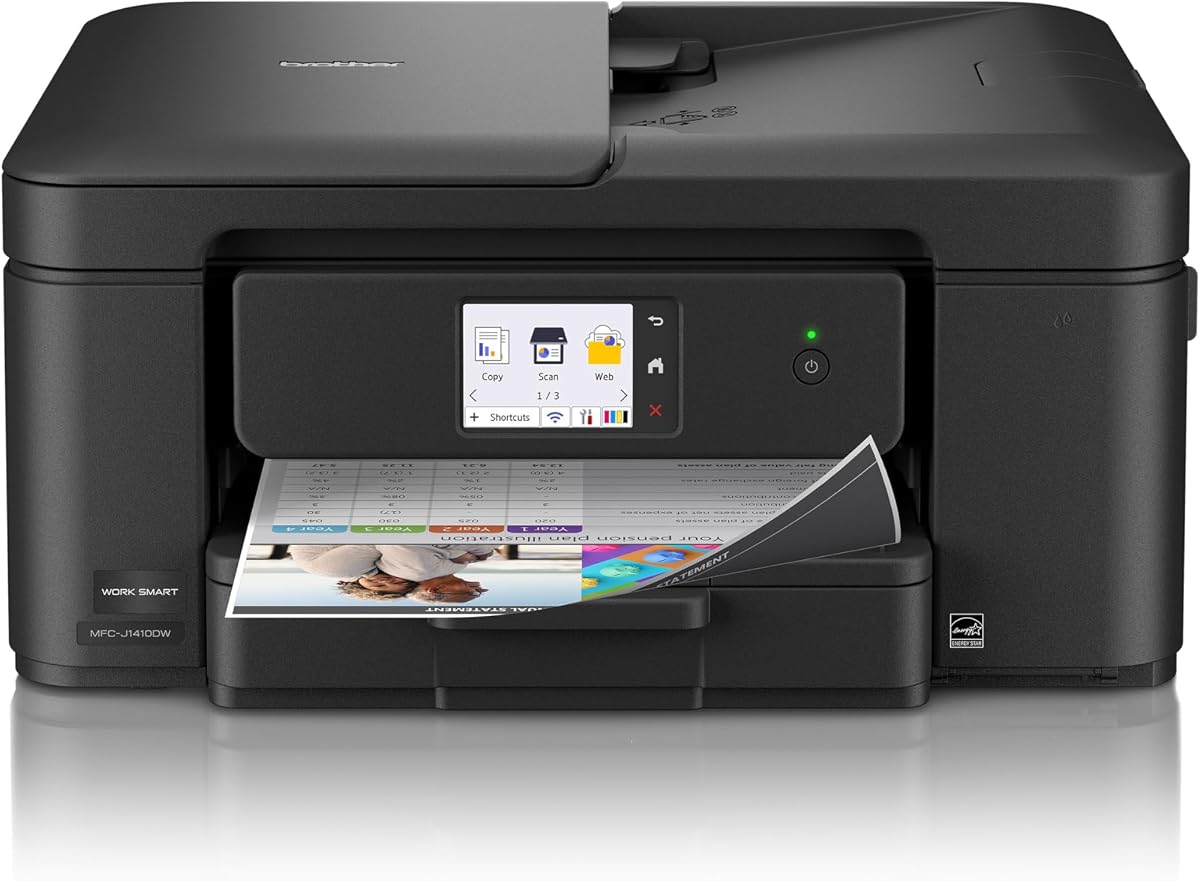
The Brother Work Smart 1410 handles home office tasks efficiently with fast black printing speeds. It acts as a versatile all in one printer for MacBook Air with cloud integration for seamless workflow.
We may earn a commission when you buy through this link, at no additional cost to you.
The 2.7-inch touchscreen simplifies menu navigation and settings adjustments. Cloud apps like Dropbox integrate directly. Automatic duplex reduces paper consumption making it cost-effective for document-heavy environments.
Subscription trials may require attention to avoid fees. Print quality suits documents well but photos may lack vibrancy. Mobile apps ensure users manage jobs remotely effectively.
Buy this for business documents and speed. It fits users needing robust connectivity and reliable output without complex photo requirements or high-end finishing options.
Cloud app connections allow you to print files directly from Google Drive or OneDrive without downloading first.
Automatic duplex printing cuts paper use by half reducing costs and environmental impact.
We may earn a commission when you buy through this link, at no additional cost to you.
The HP OfficeJet 3830 is a practical all in one printer for MacBook Air with voice control capabilities. It supports basic printing and scanning tasks efficiently with simple setup.
We may earn a commission when you buy through this link, at no additional cost to you.
Alexa compatibility allows voice commands for printing. Instant Ink readiness prevents running out of ink unexpectedly. Quiet mode minimizes noise which benefits shared home spaces or study areas.
It lacks an ADF for multi-page scanning. The touchscreen remains intuitive. AirPrint ensures seamless connectivity with Mac devices for straightforward daily operations.
Select this for basic home needs and voice control. It fits users needing simple reliable printing with modern smart home integration features.
Alexa support lets you print via voice commands making the process hands-free and convenient.
Quiet mode reduces operational noise making it suitable for shared workspaces or home offices.
We may earn a commission when you buy through this link, at no additional cost to you.
The Canon PIXMA TR8620a offers robust 4-in-1 functionality with fax capabilities. It serves as a comprehensive all in one printer for MacBook Air for users needing extensive document handling features.
We may earn a commission when you buy through this link, at no additional cost to you.
Dual paper trays support different paper sizes easily. Smart reorder via Alexa ensures you never run out of ink. The 15 ppm speed handles tasks efficiently.
The footprint is larger than compact models. Setup may be complex for beginners. ENERGY STAR rating reduces energy usage significantly during idle periods.
Choose this for office needs and versatility. It fits users who need fax and large capacity without needing external office hardware or complex setups.
Alexa smart reorder places orders automatically when ink runs low so you never face unexpected shortages.
Dual paper trays allow simultaneous use of different paper sizes increasing workflow flexibility.
We may earn a commission when you buy through this link, at no additional cost to you.
The Canon PIXMA TR4720 is an affordable entry-level all in one printer for MacBook Air. It provides essential functions like fax and scanning at a competitive price point for home users.
We may earn a commission when you buy through this link, at no additional cost to you.
Alexa smart reorder helps manage ink supplies efficiently. Auto document feeder supports multi-page copying easily. ENERGY STAR rating reduces power usage during standby modes.
Print speeds are slower than premium models. Build quality is basic. It fits light home use without demanding high performance or complex workflow requirements.
Buy this if budget is your priority. It offers standard features without extra bells and whistles for casual document and photo printing needs.
ENERGY STAR certification ensures reduced energy consumption during standby saving electricity over time.
Includes fax and scanning alongside standard printing making it a complete all-in-one solution.
We may earn a commission when you buy through this link, at no additional cost to you.
Selecting the right printer involves evaluating connectivity speed cost and features. This guide breaks down key factors to consider.
Seamless wireless integration is essential for MacBook Air users. Look for printers supporting AirPrint and dual-band Wi-Fi to ensure stable connections across your network.
Always verify AirPrint compatibility before purchase for effortless printing without installing extra drivers or software.
High-resolution printing ensures crisp text and vibrant photos. Check DPI ratings especially if you plan to print images or professional presentations regularly.
Higher resolution results in better visuals but may impact speed and ink usage depending on the model chosen.
Consider long-term costs not just the purchase price. Models with refillable tanks or subscription services can significantly reduce the cost per page over time.
Calculate ink costs based on your monthly usage to avoid unexpected expenses later.
Print speed matters for productivity. Check pages per minute (ppm) for both black and color to ensure it meets your workflow demands without delays.
Faster printers are ideal for busy environments while slower models may suffice for occasional home use.
MacBook Air users often work in compact spaces. A small footprint ensures the printer fits on desks without taking up valuable workspace or causing clutter.
Measure your available desk space to find a model that balances size with functionality effectively.
Determine if you need scanning faxing or copying capabilities. All-in-one models consolidate these functions but may have limitations compared to standalone machines.
Prioritize essential functions you use regularly to avoid paying for unused features you do not need.
Smartphone printing adds convenience for users on the go. Ensure the printer has dedicated apps or support for AirPrint and Mopria Print Service.
Easy mobile access allows printing from anywhere without needing to be near a computer.
Energy Star rated models consume less power reducing environmental impact and utility costs over time. Look for sleep modes or automatic power-off settings.
Efficient power usage helps minimize electricity bills especially for devices left plugged in daily.
Start by connecting your printer to your Wi-Fi network. Use the Mac print settings menu to add the device via AirPrint for immediate compatibility without extra software.
Keep ink levels monitored to prevent dried printheads. Print a test page weekly if idle to ensure no clogs occur and maintain print quality consistency.
Regularly clean exterior surfaces with a soft cloth and avoid using harsh chemicals. Store cartridges properly to ensure they remain functional and do not leak during storage periods.
Most modern models from HP Epson and Canon support AirPrint natively. Check product specs to ensure AirPrint compatibility before purchase.
Connect the printer to Wi-Fi then open System Settings on your Mac. Click Printers and select Add Printer from the menu to configure it.
Use manufacturer-recommended ink for optimal results. Non-genuine ink may void warranties or cause print quality issues over time.
Yes most printers allow scanning to Mac via AirScan or manufacturer apps. Ensure drivers are installed for seamless file transfer.
Driver-based printing offers more customization but AirPrint is generally quicker to set up and sufficient for standard tasks.
Check Wi-Fi network consistency and restart both devices. Ensure the printer firmware is updated for compatibility with macOS versions.
Print at least one page weekly if idle. This maintains ink flow and prevents nozzles from drying out over time.
Yes they save money long-term and reduce waste. However initial costs are higher and setup may require more effort.
The HP OfficeJet Pro 8125 leads as our top choice balancing speed and AI features. The Epson EcoTank ET-2903 offers unmatched value for high-volume needs while the Canon PIXMA TR7120 fits budget constraints.
Prioritize connectivity and ink costs based on your specific usage patterns. Consider size and multifunction features to ensure the model complements your workspace and workflow efficiently.
Verify current pricing and availability before purchasing as offers may vary. Your final choice should align with both your immediate needs and long-term printing requirements.